
WordPress Tip of the Day – WordPress Maintenance Mode

WordPress Security – WordPress Maintenance Mode

Maintenance Mode can be implemented for normal updates but it can also be implemented for emergencies. Although it can be implemented via a WordPress plugin, logging in to a hacked site may be difficult or impossible. Using the following method, there is no need to login or use a plugin to put your site in maintenance mode. So, if you find you’re WordPress site has been hacked, the first thing you should do is implement WordPress Maintenance Mode.

Step 1

Create a simple page in your text/html editor and save as maintenance.html. It can say something like – This site is currently updating. We will be back online as soon as possible. Thanks for your understaning and patience.

Step 2

Use cPanel File Manager or secure ftp (sftp) to log into your site and upload this maintenance file to the root of your site. Once uploaded, set the permissions for this file to 400.

Step 3

Then edit the .htaccess file in your domain root directory and ADD the following code:

# MAINTENANCE-PAGE REDIRECT
<IfModule mod_rewrite.c>
RewriteEngine on
RewriteCond %{REMOTE_ADDR} !^123\.456\.789\.000
RewriteCond %{REQUEST_URI} !/maintenance.html$ [NC]
RewriteCond %{REQUEST_URI} !\.(jpe?g?|png|gif) [NC]
RewriteRule .* /maintenance.html [R=302,L]
</IfModule>

Replace the 3 digit numbers (do not remove the \.) with the ip address of your computer.
You can go to whatsmyip.net to view your computer’s ip address.

This will do two things:
1) This will redirect all visitors to your maintenance.html page but still give you access to your entire site.

2)This will give you time to repair the site while preventing your visitors from being exposed to any possible malware that may have been installed.


WordPress-Maintenance-Mode

WordPress Tip of the Day – Image Optimization

Spice up your WordPress posts with eye-catching images. Optimize for performance.


  • Add interest to your site and posts by integrating eye catching images.
  • Size your images to fit and try avoiding the need for WordPress to resize.
  • Name your images using your keyword and incorporate your keyword when employing a caption.
  • Keep image sizes to a minimum to lessen the impact on page loads.
  • Free tools to optimize your image size:
  • WP Smush.it – WordPress plugin
  • PunyPNG – upload and compress png files.

WordPress-Tip-Image-Optimization


WordPress Tip of the Day – Plugin Problems

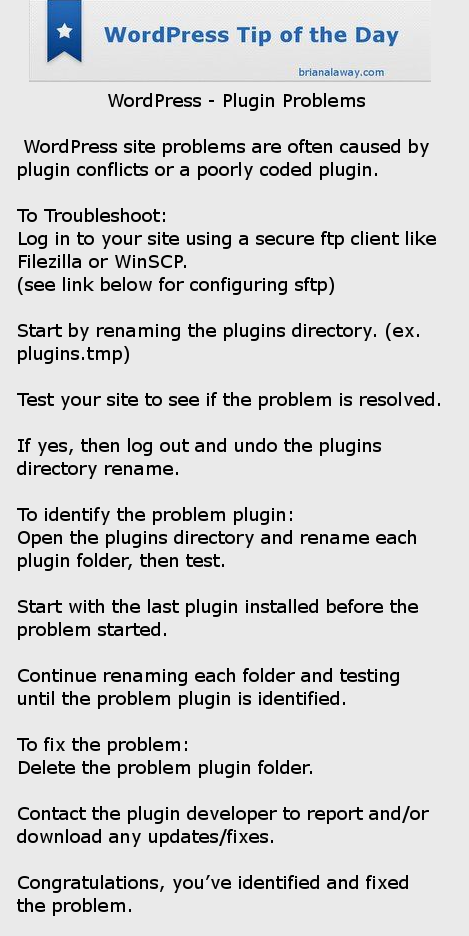
WordPress site problems are often caused by plugin conflicts or a poorly coded plugin.

To Troubleshoot:

Log in to your site using a secure ftp client like Filezilla or WinSCP.
(see link below for configuring sftp)

Start by renaming the plugins directory. (ex. plugins.tmp)

Test your site to see if the problem is resolved.

If yes, then log out and undo the plugins directory rename.

To identify the problem plugin:

Open the plugins directory and rename each plugin folder, then test.

Start with the last plugin installed before the problem started.

Continue renaming each folder and testing until the problem plugin is identified.

To fix the problem:

Delete the problem plugin folder.

Contact the plugin developer to report and/or download any updates/fixes.

Congratulations, you’ve identified and fixed the problem.
WPTOD-PluginProblems